
How to Verify a Photo Really Has No Hidden Metadata Left
Uploading a photo online feels harmless until you realize the file contains your home address, the exact time you left work, and the serial number of your camera. Most people assume that deleting the text description or cropping the image removes this data. It does not. The information lives deep inside the file structure, invisible to the eye but easily readable by anyone who knows where to look.
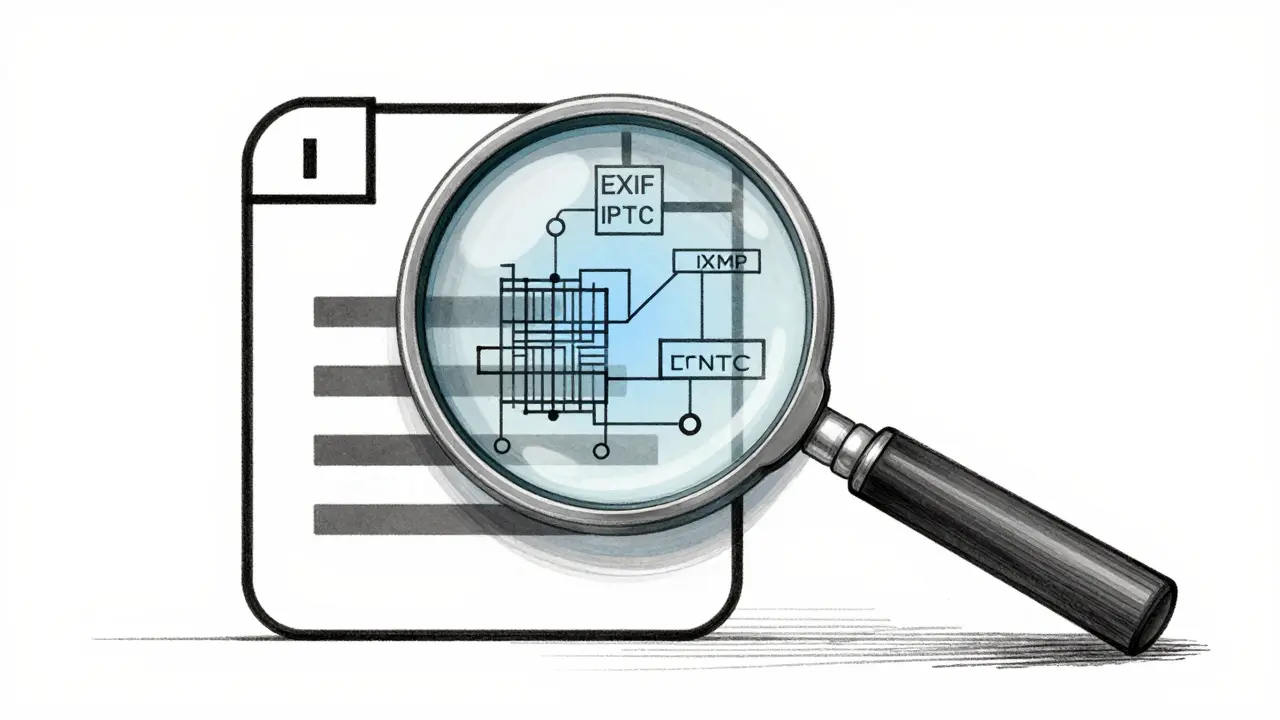
Verifying that a photo is truly clean requires more than a quick glance at file properties. You need to confirm that standard metadata containers like EXIF, IPTC, and XMP are empty, and that no proprietary vendor tags remain. This guide walks you through a multi-layered verification process using command-line tools, web viewers, and low-level checks to ensure high confidence that your image carries no hidden baggage.
The Layers of Image Metadata
Before verifying removal, you must understand what you are looking for. Digital photos store data in specific blocks depending on the format. In JPEG files, metadata hides in APP1 segments (for EXIF and XMP) and COM markers. PNG files use ancillary chunks like `tEXt` or `eXIf`. TIFF and RAW formats rely on Image File Directories (IFDs).
These layers typically contain:
- GPS Coordinates: Precise latitude and longitude of capture.
- Device Identifiers: Camera make, model, and sometimes the unique serial number.
- Timestamps: Exact date and time of creation and modification.
- Software Tags: Names of editing apps like Photoshop or Lightroom.
- Embedded Thumbnails: Small preview images stored inside the file, which may retain original visual data even if the main image was edited.
Your goal is to strip these fields while keeping the pixel data intact. Structural tags like file type, dimensions, and color space cannot be removed without breaking the image, so verification focuses on ensuring only these essential technical fields remain.
Step 1: Deep Inspection with ExifTool
For serious verification, built-in OS views are insufficient because they hide many proprietary tags. The industry standard for reading metadata is ExifTool, a comprehensive Perl-based command-line utility developed by Phil Harvey that reads and writes metadata in hundreds of formats. It exposes every recognized label, including obscure maker notes.
To verify a cleaned file, run ExifTool with flags that show all groups and unknown tags:
exiftool -a -u -g1 image.jpgReview the output carefully. Look for the following red flags:
- GPS Group: Ensure fields like `GPSLatitude`, `GPSLongitude`, and `GPSMapDatum` are absent or empty.
- Camera Owner Info: Check for `BodySerialNumber`, `LensSerialNumber`, or `CameraOwnerName`.
- Software History: Verify that `Software`, `ProcessingSoftware`, or `HostComputer` do not leak your identity.
- Thumbnails: Look for `ThumbnailImage` or `PreviewImage` entries with byte sizes. If present, the scrubbing tool failed to remove embedded previews.
If ExifTool lists only minimal structural data (FileType, ImageWidth, ImageHeight), you have successfully stripped standard metadata. For those who prefer a graphical interface without installing software, Vaulternal's image metadata remover offers a dual-mode inspector that runs entirely in your browser, allowing you to view exactly what tags exist before deciding to strip them.
Step 2: Cross-Check with Independent Web Viewers
No single tool parses every proprietary tag perfectly. To increase confidence, cross-reference your results using an independent analyzer. Services like Metadata2Go or Jeffrey’s Image Metadata Viewer parse files differently and may catch fields your local tool missed.
Upload your supposedly clean image to one of these services. Compare their output against your ExifTool report. If both tools show only basic dimensions and file type, you can be reasonably sure that standard EXIF, IPTC, and XMP data is gone. Note that for highly sensitive documents, avoid uploading files to third-party servers; stick to local tools like ExifTool or client-side browser tools that never transmit data.
Step 3: Operating System Sanity Check
While not exhaustive, checking file properties in your operating system mimics what a casual recipient might see. On Windows, right-click the image, select Properties, and go to the Details tab. On macOS, use Get Info or Preview.
Confirm that fields such as Camera Model, Date Taken, and Location are blank. If these fields still populate, your scrubbing process failed at the most basic level. This step serves as a quick validation that obvious personal information has been removed from the visible metadata layers.
Step 4: Low-Level Hex Spot-Check
Advanced practitioners perform a final spot-check to ensure no unrecognized metadata containers remain. Open the image file in a hex editor or a strings viewer. Search for human-readable markers near the beginning of the file:
- `Exif` or `EXIF`
- `http://ns.adobe.com/xap/1.0/` (the XMP namespace URI)
- Your name, email, or known device serial numbers
If you find these strings in the header and they were not listed by your metadata tools, it indicates non-standard or partially parsed segments. This method is not a full forensic analysis but adds a layer of assurance that no obvious metadata headers linger unrecognized.

Understanding Verification Limits
It is crucial to distinguish between metadata and steganography. Removing EXIF and IPTC data does not detect arbitrary data hidden within the pixel values themselves using steganographic techniques. Such data is invisible to standard parsers and requires specialized statistical analysis to detect.
Furthermore, some cameras embed undocumented proprietary tags that even robust tools like ExifTool might not fully interpret. In extreme privacy scenarios, transcoding the image-opening it in a trusted editor and exporting it as a new file-can force the recreation of pixel data from scratch, dropping unknown segments. However, for most users, stripping standard metadata via reliable tools provides sufficient protection against accidental leaks.
| Method | Depth of Inspection | Ease of Use | Best For |
|---|---|---|---|
| OS File Properties | Low (Visible tags only) | High | Quick sanity checks |
| Web Viewers (Metadata2Go) | Medium (Standard parsers) | High | Cross-referencing results |
| ExifTool (CLI) | High (All known tags) | Low (Command line) | Professional verification |
| Client-Side Browser Tools | High (Local processing) | High | Privacy-focused users avoiding uploads |
Best Practices for Clean Images
To maintain long-term privacy hygiene, adopt workflows that minimize metadata from the start. Disable GPS tagging in your camera or phone settings when possible. When sharing photos publicly, always run them through a verified cleaning process before upload. Document your verification steps if you work in regulated environments, noting which tools and versions confirmed the absence of sensitive data. By combining comprehensive local tools, independent cross-checks, and an understanding of format-specific structures, you can confidently share images without exposing your private details.
Can I verify metadata removal without installing software?
Yes. You can use browser-based tools that process files locally on your device. These tools allow you to inspect and strip metadata without uploading the image to a server, providing a secure way to verify cleanliness using modern web technologies like WebAssembly.
Does cropping a photo remove its metadata?
No. Cropping changes the pixel dimensions but typically preserves all EXIF, IPTC, and XMP metadata blocks. You must explicitly strip metadata using dedicated tools after editing.
What is the difference between EXIF and IPTC data?
EXIF data primarily contains technical camera settings, timestamps, and GPS coordinates. IPTC data is used for descriptive information like captions, keywords, copyright notices, and creator names, often utilized by news agencies and digital asset management systems.
Can I prove a photo has absolutely no hidden data?
You can prove the absence of standard metadata containers like EXIF and XMP. However, you cannot mathematically guarantee the absence of steganography (data hidden within pixels) or undocumented proprietary tags without extensive forensic analysis.
Why should I check for embedded thumbnails?
Embedded thumbnails are small copies of the original image stored within the metadata. If you edit the main image to blur a face or remove an object, the thumbnail may still contain the unedited version, potentially revealing sensitive information.
Is it safe to upload photos to online metadata viewers?
For general purposes, reputable online viewers are convenient. However, for highly sensitive or confidential images, it is safer to use local command-line tools or client-side browser applications that do not transmit file data to external servers.
What does ExifTool's verbose mode reveal?
Verbose mode (`-v`) prints a detailed breakdown of internal file structures and raw tags. This helps identify unrecognized or proprietary metadata segments that standard summary views might overlook.
Do PNG files contain GPS data?
PNG files can contain GPS data if it is embedded in specific chunks like `eXIf` or `iTXt`. While less common than in JPEGs, converting a JPEG to PNG without stripping metadata will carry over the location data.
How do I remove metadata from multiple images at once?
Command-line tools like ExifTool support batch processing. You can run a single command targeting a directory to strip metadata from all images simultaneously, making it efficient for large collections.
Does taking a screenshot remove metadata?
Taking a screenshot usually creates a new image file with minimal metadata, effectively stripping the original EXIF data. However, the new file may contain system-generated metadata like the timestamp of the screenshot itself.